Category Archives: LinkedIn

3 areas of information your LinkedIn profile Dashboard provides: part 1

The Dashboard on your LinkedIn profile is a source of information, to which only you are privy. It provides you with information on three main areas: Who viewed your profile, Post views, and Search appearances. When I discuss the LinkedIn profile in my workshop, many people are unaware of the Dashboard. This area of your profile should be visited often.

dashboard2

Below the aforementioned information, you can also benefit from three features: Career Advice, Career Interests, and Salary insights. I will address these features next week.

Who viewed your profile

The information you’ll see first when you click on Who viewed your profile is the trend of visits you’ve had in the past 90 days. As you can see, my percentage of visitors has dropped 9 percent in the past week.

You can also see that the number of visits was highest in March and hasn’t reached that number since. I’m also on a disturbing downward slope. Must do something about this.

views2


Below this graphic you’ll see LinkedIn members’ head shot, name, and a partial view of their headline. For basic members, such as myself, you’ll see the most recent five people who’ve visited your profile. (Incidentally, four of mine are named “LinkedIn Members.”)

LinkedIn kindly gives you the option to upgrade to a premium account (of course they do) so you can see beyond the most recent five visitors. You’ll see everyone who viewed your profile in the past 90 days.

Well, this is partly true. You will not be able to discern the identity of visitors who select “private profile characteristics” or “private mode” in their settings to view your and other profiles. If you hoped to break through these two privacy settings, you’re out of luck.

Post views

LinkedIn shows you how many people viewed your latest post. This gives you a good sense of how many people are paying attention to what you posted. If the number is high, it’s time to rejoice. On the other hand if it’s low it means that the content is not what your audience is interested in. Below is a screenshot of one of my latest post which was one day ago.


Posts

Posts can include anything from an article you shared; a question you asked; some great advice you gave; a photo with a caption; a video you created for LinkedIn; a quote you appreciated; and, in my case, an announcement of what’s going on in your organization.

Search appearances

This is the most interesting information, in my opinion. Here is were you’ll see who’s searched for you based on companies, what your searchers do, and the keywords they used to find you.

Where your searchers work

Demographics of Jobboard

I find it intriguing that LinkedIn employees are searching for me. Could it be that I’ve offended them? Might they be looking to hire me? It’s most likely the former. For job seekers this can be exciting news if the companies looking at you are the ones you’ve targeted or have applied to.

Also of interest is that authors and online marketing managers round out the top two occupations interested in me. Again, you will strive for people in your industry and at higher levels. Recruiters might show up as people who viewed your profile, which is a good thing.

In terms of keywords, I get every one of them except for Edit.com. Could someone explain this to me? What’s important is that hiring authorities are searching for words that are in your branding strategy. LinkedIn is obviously a word I want people to use when searching for me.

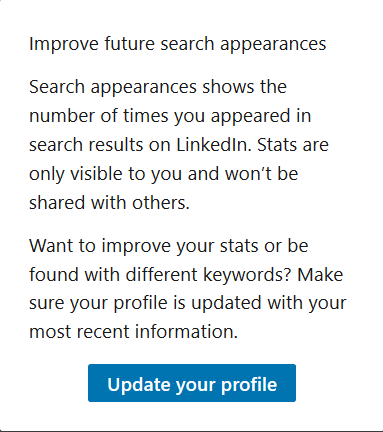
Lastly, I appreciate LinkedIn’s advice on how to improve my profile, but keywords alone won’t increase your visibility. You must also develop a focused network, as well as engage with your connections on a daily basis.
Improve Your profile

These are three areas of information your dashboard provides. Next week I’ll go over  three features your dashboard provides.


LinkedIn’s Career Interest function worked for one of my clients

Following is an email I received from a client of mine.

Hi Bob,

I Thought I’d share my latest LinkedIn story. I have the experience to be more than entry level, but due to my life situation (single mom) I choose to make my child my priority, not money and work responsibility.

I have been working [part-time] in an entry level position for about [two] years. Ready to go [full-time], the company [for which I work] was not interested in increasing my hours, so I updated my LinkedIn profile and made it available for recruiters [using Career Interests]; that’s all.

A week later I was contacted by a recruiter in Chicago stating they had a position I was perfect for. Reluctantly, I arranged a telephone conversation with the recruiter who sent me the job description and advised that she was hiring for a Cambridge, MA, company.

It was like the description was written from my resume. So I forwarded my resume over thinking, can’t hurt. Two days later the phone rang, the company wanted to bypass the telephone interview and meet me face to face. So I did.

Yesterday I accepted the position of contracts manager for a 30k-person company based in Japan. I will work in Cambridge. After travel and parking expenses I will be making almost three-times my current salary. LinkedIn works well!!! At least for me! And you showed me how.

All my best, Kelly


LinkedIn explains how “Career Interests” works

Among the many Recruiter spotlights we provide, the Open to New Opportunities feature allows LinkedIn members to privately share their career interests with Recruiter users who aren’t affiliated with their current or related companies.

Once a candidate opts to privately share their career goals with recruiters, users of LinkedIn’s Recruiter product will be able to see that candidate as “open to new opportunities” when running a search that aligns with their background.

If an open candidate starts a new position, they’ll be prompted to turn off their signal if they’re no longer open to new opportunities. They’ll also receive a reminder to respond to InMail messages from recruiters if they haven’t responded to two consecutive InMail messages.


I was excited to hear about Kelly’s success, especially given that her new job got her out of a jam. She is making three-times more than she previously made. I would call this a success story.

3 proper ways for job seekers to send invites on LinkedIn

I recently led a webinar in which I talked about the ways LinkedIn members can build their networks by connecting with others properly. I stressed the importance of sending a personalized invite as opposed to sending the default message LinkedIn provides.
Businesswoman working on laptop computer

Before we dive into writing personalized invites, it’s important to know the fundamentals of finding LinkedIn members. Here’s how I search for Career Advisors:

  1. Type “Career Advisor” in the search field,
  2. choose “People in Career Advisor” in the dropdown,
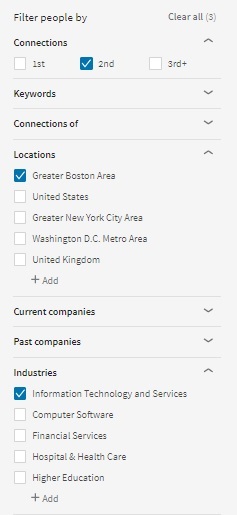
  3. select “All filters” and am brought to “Filter people by,”
  4. check the “2nd” box for second-degrende connections, and
  5. finally check the box for the “Greater Boston Area.”

All people filter Recruiterdotcom

Once you’ve landed on a profile that speaks to you, you can choose “Connect” and write one of three personalized invitations:

1. Connecting Directly: The Cold Invite

Of the three options, this is the least successful way to connect on LinkedIn. It is better than indiscriminately clicking the “Send Now” button on a potential connection’s profile, but it is still a cold invite.

In your invitation, you can mention where you and your desired connection met, similar to the message below:

Hello Susan,

We met at the Westford networking event. You delivered an excellent presentation. The way you talked about interviewing resonated with me. As promised, I’m inviting you to my LinkedIn network.

Bob

Note: you only have 300 characters with which to work, so your invite needs to be brief.

2. Using a Reference to Connect

If you’re going to connect directly, you’re more likely to see success by mentioning a reference in your invite. This would be a shared connection, someone who is connected with you and the LinkedIn member with whom you’d like to connect.

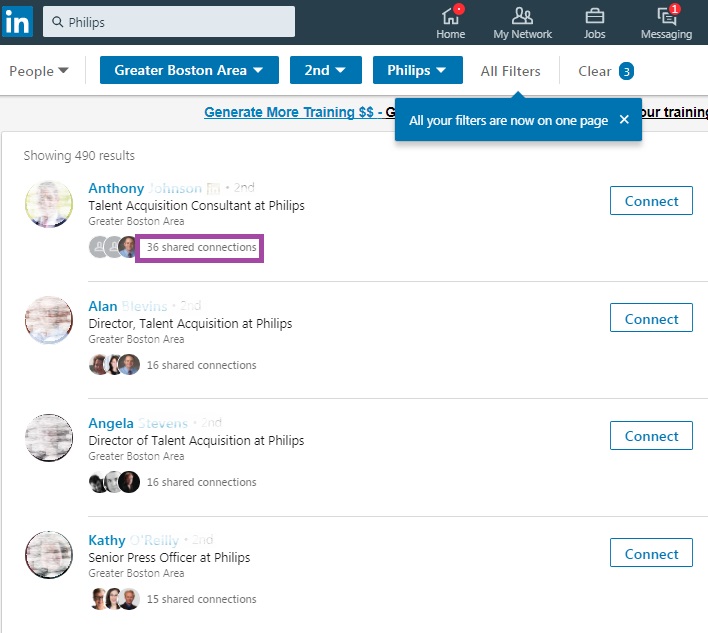
I did a search for second-degree connections who reside in the Greater Boston Area and work for Philips. Below is an image of four results for this search. You will notice the faces of the shared connections. Click on “(number) of shared connections” to see who is connected directly with your desired LinkedIn member.

Philips shared connections for Recruiterdotcom

Once you have chosen a person who could be a reference for you, email the person asking if you could use their name in an invite. Don’t assume your shared connection will allow you to use their name.

Once you have your reference’s permission, your message to a new connection might look like this:

Hi Dave,

You and I are both connected with Sharon Beane. She and I work for the Career Center of Lowell as workshop facilitators. She strongly encouraged me to connect with you and would be willing to talk with you about me. I believe we can be of mutual assistance.

Sincerely,

Bob

3. Asking for an Introduction

This is the most proper way to connect with new people, albeit slower. This method requires asking a trusted connection to send a message to the person with whom you’d like to connect.

Note: It’s best to ask for an introduction through email, because people are more likely to reply to email than to LinkedIn messages.

Here is a sample introduction sent via email:

Hi Karen,

I see that you’re connected with Mark L. Brown, the director of finance at ABC Company. I’m currently in transition and am very interested in a senior financial analyst role.

Although there is no advertised position at ABC, I’d like to speak with Mark about the responsibilities of a senior financial analyst role in ABC’s finance department. It is early on in the process, so I’m also scoping out the companies on my bucket list.

I’ve attached my resume for you to distribute to Mark and anyone you know who is looking for a senior financial analyst.

Sincerely,

Bob

PS – It was great seeing our girls duke it out in last weekend’s soccer match. I hope the two teams meet in the finals.


To optimize the way you connect with people on LinkedIn, it’s important to develop a network of valuable connections. The core of your network should be people who work in your industry and share the same occupation. You should also connect with people who work in other industries but in the same occupation.

Regardless of who you connect with, always use the proper approaches to invite them to your network.

Photo: Flickr, Thought Catalog

This post originally appeared in recruiter.com.

5 ways the new LinkedIn profile has changed for the good and bad

LinkedIn is at it again.

I guess when it comes down to it, I can be adverse to change. (I wrote a post claiming that LinkedIn made changes to its people filter feature just for the sake of making changes. ) But now that I think of it, the changes that LinkedIn made to All Filters aren’t that bad. In fact, some of them are quite nice.

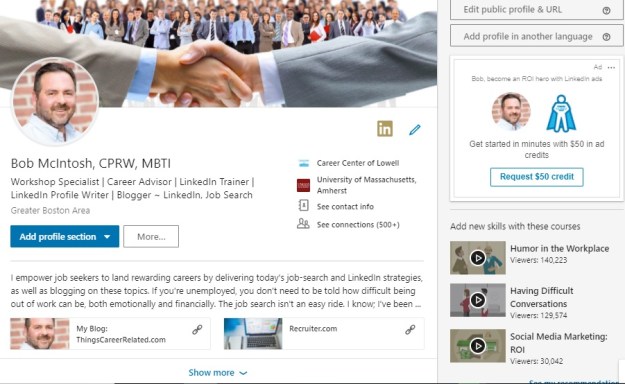
So I’m going to go at the new changes LinkedIn made with an open mind and not be too judgmental. LinkedIn didn’t overhaul its members’ whole profile; just the top of it, which I call the Snapshot area. Nonetheless, this is important real estate.

For the purpose of this post, I’m displaying my new profile followed by my previous one.

The New

New Snapshot2

The Old

New Snapshot Area

Full disclosure: I’m not the first one to write on this topic; I just recently received these changes. So, without further adieu….

Background image

You’ll notice that the new version of my LinkedIn profile’s background image is smaller than the previous one. This is not a drastic change; however, I liked how the background image used to covered the whole screen.

What’s taking up the rest of the background image? Ads that are specific to you and only you can see. With every profile you visit there will be a different ad. On my profile today there’s an ad telling me, “Picture yourself  at General Motors.” It’s a position for which I’m not at all qualified.

Photo

The photo (purported to be 20% larger), along with the information below it, has shifted to the left. Again, nothing drastic about this. Because our eyes read from left to right, I’m assuming this is LinkedIn’s purpose for moving the photo to the left.

One problem with the new placement of the photo is it might block something important in your background image, such as a logo or a piece of your background image you value. Some LinkedIn members will be struggling to re-position their image or replace it with a new one.

Name and Headline

Nothing new here, other than moving these two areas to the left. This was done to make room for the information mentioned below. Some say it’s easier to read text that is left-justified. I concur. However, center-justified text is more appealing to the eye.

This change is not enough to cause an uproar. I hope eventually LinkedIn will extend the number of characters (currently 120) for its members Headline. Some have benefited from it by using the mobile app to utilize the extra characters. I was not given that privilege, though.

Summary

This is the best change LinkedIn has made. The previous profile only displayed two lines, or approximately 40 words, on the desktop version. The new one displays a whopping three lines of text, approximately 50 words, which means that you have more space to write an impactful opening for your Summary.

Missing from the new profile is the Summary header. I hope LinkedIn will come back with it, as some visitors don’t know it’s the Summary they’re looking at in the Snapshot area.

Along with expanding the opening text from two lines to three is the display of your Rich Media area, where you can show off videos, audio, documents, and PowerPoint presentations. Previously visitors had to open the entire Summary to see your media. This is a pleasant change. Kudo’s LinkedIn.

Note: you can display your rich media in your Experience and Educations sections. My valued connection, Donna Serdula, works her rich media areas.

“Place of employment, education, See contact info, See connections” area

I love this change, as it not only highlights this information; but each icon is a live link to your current or previous place of employment, alma mater, contact information, and connections (if you allow your connections to see them).

The older version showed us this information, but it wasn’t placed it in one central location. Notice on my previous profile that the contact information is situated to the right. Many of my workshop attendees aren’t aware of this important area, until I point it out. Well done, LinkedIn!


Final analysis

Overall, I think LinkedIn has made nice changes. Are they earth shattering? No. Do they improve functionality? No. But they are an improvement to the top part of your profile. I look forward to what LinkedIn does to the Experience area, even if it doesn’t need enhancement.


10 ways to optimize your LinkedIn engagement in 2019

Having a strong LinkedIn profile is essential to being found by other LinkedIn members and employers, but your job isn’t complete unless you’re communicating with your LinkedIn community on a consistent basis. This will contribute to optimizing your LinkedIn engagement.

linkedin-alone

I tell my LinkedIn workshop attendees that I spend approximately an hour a day (it’s probably more) on LinkedIn. Their faces register surprise, and I’m sure some of them wonder if I have a life.

But networking is about communication. If you’re going to use LinkedIn to its full potential as a networking tool, you need to communicate with your connections on a more consistent basis. So far you have optimized your profile and network of connections. Now it’s time to complete the circle; optimize your whole LinkedIn campaign.

Here are 10 ways to do just that:

1. Direct messages

The most obvious way to optimize your LinkedIn engagement is to communicate with your connections directly. LinkedIn’s “Messaging” feature allows you to have running chats with all your first-degree connections. At first this was disconcerting, however; LinkedIn members got used to it.

In addition, the “Messaging” feature follows you around the site. You can read and send messages no matter what page you’re on — an obvious sign that LinkedIn wants you to communicate with your connections.

2. Share updates often

Another great way to optimize your engagement with your connections is by is posting updates. How many you post is up to you, but I suggest at least one a day. Some people tell me they don’t even have time to update once a week. I tell these people that they need to stay top of mind. When you’re not seen, you’re forgotten.

You’ll notice that LinkedIn has given its members the ability to create and post video updates. It’s a nice feature, but few people are using it. This could be an option to consider in order to make your updates stand out.

3. Like and comment on your connections’ updates

Another way to communicate with your connections is to “like” their updates. Simply liking their updates is not enough, in my opinion. I would go as far as saying that this is lazy.

To optimize your LinkedIn engagement, you should get a little more creative by commenting on the update. This shows that you read and thought about what they wrote. Additionally this can generate valuable discussion.

Note: Let people know you commented on their post by tagging them. Use the @ symbol before they name, such as @Adrienne Tom, Executive Resumes. They’ll see you tagged them by going to Notifications on LinkedIn, as well as choosing to be notified via email.

4. Don’t hide yourself when you visit your connections’ profiles

Some people adjust their privacy settings so that they only show up as “Anonymous LinkedIn User” or “Someone from the (particular) Industry” when they visit other people’s profiles. Not me! I visit my connections’ profiles — with full disclosure — many times a day. My connections will visit my profile many times as well.

When people visit my profile under the veil of secrecy, I do nothing. When people drop in announced, however, I’ll show my appreciation by writing to them, “Thanks for visiting my profile.” This will also lead to a discussion.

5. Endorse your connections

You’ve probably read many opinions from people on the topic of endorsements. Add me to the list of people who prefer both receiving and writing thoughtful recommendations to simply clicking the “Endorse” button.

In fairness, endorsements do have a greater purpose than showing appreciation for someone’s skills and expertise: They are a way to touch base with connections. This is another way to optimize your engagement. As they say, “Spread the love.”

6. Participate in discussions regularly

This is a great way to share ideas with established and potential connections. I have gained many new connections by actively participating in discussions on LinkedIn.

Believe it or not, I don’t find groups to be the best places for discussions. Instead, it’s better to start them via updates you post from your homepage. There are people who do a great job of optimizing their engagement because they add comments that generate more communication.

7. Be a curator 

If your connections blog, take the effort to read their posts and comment on their writing. This is an effective way to create synergy in the blogging community, and also a great way to get material for your daily updates.

One of the easiest ways to optimize your engagement is to share posts from other sources you read on a regular basis. There are plenty of online publications which provide relevant information for your network. Sharing knowledge is part of your networking campaign.


Take It a Step Further

An online connections will not become a fully thriving relationships until you’ve communicated with them in a more personal way. While LinkedIn offers many powerful ways to communicate with your network, there will come a time when you’ll need to move off LinkedIn in order to take your networking relationships to the next level.

8. Send an Email

Email doesn’t require a lot of effort, but it’s an important step in developing a more personal relationship with a connection. You should have access to the email addresses of all your first-degree connections on LinkedIn, so use that information when you’re ready.

9. Call Your Connections

This is a daunting step to many, but it’s a necessary one.

That said, don’t just call your connection out of the blue. Email them first to let them know you’d like to call. Write the reason for your call; if it’s your first call, you’ll probably want to talk about who you are and what your professional goals are. You don’t want to put your connection in an awkward situation or catch them off guard, so be clear about the purpose of your call.

10. Meet Your Connections Over Coffee

Finally comes the face-to-face meeting at a place that is convenient for both of you. If your connection lives in a distant location, you may suggest getting together when you’ll be in their city or town.

When you meet in person with a connection, that person becomes a bona fide member of your personal professional network. This is the ultimate way to communicate with a LinkedIn connection. It may not happen often, particularly if a connection lives far from you, but when such meetings do occur, they present great possibilities.


Having a great LinkedIn profile is only the start. To really make the most of the site, you must communicate with your connections. It’s your activity on LinkedIn that makes the difference between standing still in your career and realizing professional success.

If you want to learn more about LinkedIn, visit this compilation of LinkedIn posts.

4 Reasons Why Your LinkedIn Background Image Shouldn’t Be Ignored

The director of the career center for which I work sat in on one of my LinkedIn workshops. In it I talked about how your whole LinkedIn profile should brand you. I thought I did well and afterward asked her for her thoughts.

Lake2b

She told me, that in fact, I did well but forgot to point out that the background image (which sits behind your headshot) is another area that brands you. I should have known this, but honestly it didn’t occur to me until she mentioned it. Boy, did I feel like an idiot.

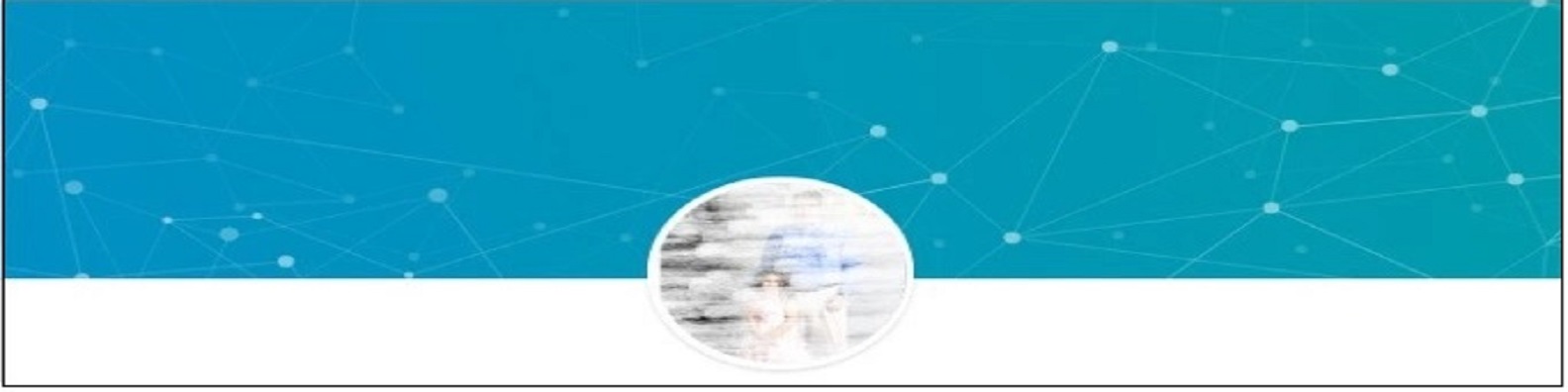
The background image of the LinkedIn profile seems to get a pass from many LinkedIn members. Instead, they use the light-blue background decorated with dots and lines (below).

Bad background

To take a pass on this area is a mistake, as this is the first image people see when they visit your profile. Therefore it should reflect who you are, what you do, your brand, and that you care about your professional image.

It matters

This is prime real estate on your LinkedIn profile. If done well, your image will be properly sized at 1,584 by 396 pixels. Any image larger than that will be cropped, so you might not be able to include that great portrait photo of you standing before Mt. Kilimanjaro.

So why don’t LinkedIn members put more thought into their background photo, and what does your background image say about you?

Your brand

Shelly background

This is perhaps the best reason to have a background image on your LinkedIn profile. One of my most valued connections, Shelly Elsliger, PPCC, is all about branding. She takes it to a higher level than most people when it comes to developing a unique professional identity and coherent message that sets her apart from others. This is truly reflected in her background image above.

Ask yourself, “What does my background say about me?” If the answer is, “The same ole tired background many LinkedIn members are using, it’s time to think about how you can create a unique identity, as Shelly has. Obviously she has gone through the effort of creating her own personalized background. You might not have ability to go that far.

Who you are

One of my client’s background image is of her hiking in the Appalachian Mountains. It works because she loves hiking and wants her connections to know this. Her photo is also work-related, so it is relevant. Double whammy.

You may have a background image of the New York skyline, a tranquil lake, a field where horses are grazing, or anything else that describes you as a person. I recently asked a facetious question of my LinkedIn connections about including family members and pets in your profile background. The answer was a resounding “NO.”

What you do

Yoga

The photo above is of a woman doing yoga. If you’re a yoga instructor, this might be an appropriate background image for your LinkedIn profile. It sends a clear message about what you do.

As, a surgeon, you might not have a background that shows you in action operating on a patient. But perhaps you can find a photo of a hospital you can use as your background. You may have to get permission to use this photo.

That you care

Lowell Factories

When you use a background image on your LinkedIn profile, it shows you care about how you present yourself. I was critiquing one of my clients’ profile when I noticed, as his background image, a black and white photo of Lowell, MA.

Does it represent what he does as program manager? No. Is it branding him? Not really. But it shows he cares about his professional image. He didn’t want to leave the default image, because doing that would show that he didn’t care about his professional image.


I’m grateful that my director mentioned my faux pas of not mentioning the LinkedIn background image as an important part of the profile. What hurt the most was not realizing how important the background image is to the profile.

If after reading this post, you feel you need to upgrade your background image, no worries. You can get free images from https://stocksnap.io/. I get many of my images from http://www.flickr.com, which allows you to use their photos as long as you credit the photographer. No problem.

Is there anyone I’ve missed? If you know someone (including you) who as a great background image, I’d love to add them to the list. Please tag the @person, as well.

If you want to learn more about LinkedIn, visit this compilation of LinkedIn posts.

Photo of yoga woman is from https://stocksnap.io.
Other photos were provided with permission.

6 Areas on your LinkedIn profile you should optimize in 2019

If you’re wondering how an optimized LinkedIn profile will help you in your job search, the answer is simple: Your profile needs to be found by hiring authorities (recruiters, hiring managers, and human resources reps). These people can’t find your profile unless you utilize search engine optimization.

linkedin-alone

Hiring authorities approach LinkedIn similarly to the way they approach their applicant tracking systems (ATSs). They search the site for certain keywords denoting titles and areas of expertise. To be found, you must show up in the first 4-6 pages of search results, lest you be overlooked.

Let’s consider the following scenario: A hiring authority is searching for a finance manager with expertise in data analysis; advising senior managers on how to maximize profits; business analysis; forecasting; supervising employees responsible for financial reporting; and legal compliance. A Masters of Business Administration (MBA) is preferred, although not required.

If a given finance manager wants to be found by the hiring authority in this scenario, their LinkedIn profile must contain their title and area of expertise. Furthermore, this information must be listed in all areas of the finance manager’s profile in order to maximize their chance of being found. This information can be worked into the finance manager’s profile through the use of keywords.

Areas on Your Profile Where Keywords Count

1. Your Name

This area is valuable real estate, as it is weighed heavily in searches. Any certifications or degrees you hold should be included alongside your name, as they will indicate your experience and expertise. So, our finance manager would list their education, “MBA,” after their name.

2. The Headline

This area should be rich with keywords, and it should brand you for your occupation and industry.

Using our financial manager as an example, their headline would read as:

Finance Manager ~ Data Analysis | Business Analysis | Forecasting | Legal Compliance | Maximizing Profits | MBA

Note that you only have 120 characters – including spaces – to work with in your headline. The above example uses 113 characters.

3. The Summary

Your summary should not be brief. Writing a brief summary prevents you from including all the important keywords we’ve identified. In the case of our finance manager, they would want to repeat “finance manager” and the areas of expertise mentioned in the headline above as often as possible.

Note that you have 2,000 characters with which to work in your summary. Something to keep in mind is that visitors only see the first two lines of your summary, unless they select “See more. Read: The 39 most important in your LinkedIn profile summary

4. Experience

The experience section is often overlooked, which is a huge mistake. Each entry in the experience section contains two factors that need to be considered: the job title and the position description.

Our finance manager’s official title is “finance manager” at ABC Company. While this is an accurate title, it doesn’t show their full value. The finance manager should instead list a title similar to their headline. However, you only have 100 characters here, so you have to be more selective. Our finance manager’s title might read:

Finance Manager ~ Data Analysis | Business Analysis | Forecasting | Legal Compliance | MBA

Here, the phrase, “maximizing profits” was removed. “MBA” could be removed instead, but the designation is more important for our finance manager’s purposes.

While the position description must above all else show the candidate’s value by listing accomplishment statements with quantified results, it is also an area on your LinkedIn profile where you can utilize a great deal of space. You have 2,000 characters here to repeat your title and areas of expertise. Don’t squander them.

5. Education / other sections

The education and other sections are also in play. What many people fail to realize is that they can add narratives to their education section. Yes, you’ll list your institution of learning and location (no dates of graduation), but you can also provide some background information.

Our finance manager might tell a story like this: “I fell in love with accounting and other areas of finance on my way to earning my MBA. Of particular interest to me were data and business analysis. I was given the opportunity to learn these skills during an internship at ABC company, which is where I am now employed.” Notice how this narrative employs the right keywords!

You can also benefit from keywords in the featured skills and endorsements sections. Your skills are counted, and some say the number of times you’re endorsed for them increases your ability to be found.

Other considerations when optimizing your LinkedIn profile

Loading your profile with keywords isn’t going to be enough on its own. Being found by hiring authorities also depends on how many people you’re connected with, as well as who your connections are. In addition, engaging with your connections will increase your chances of being found. Read 3 reasons for your LinkedIn success.

Outside your LinkedIn profile

Highlighting your LinkedIn profile on business cards, resumes, links from other social media can further optimize your profile.


Next week, we’ll explore LinkedIn profile optimization further by looking at how to properly connect with other LinkedIn members.

This post originally appeared on recruiter.com.

If you want to learn more about LinkedIn, visit this compilation of LinkedIn posts.

LinkedIn makes changes to People search: smart, or for the sake of changes?

The old saying, “If it ain’t broke, don’t fix it” falls on deaf ears with LinkedIn. For reasons beyond me and others, the new changes LinkedIn has made to Search make little sense and certainly don’t improve a feature that was just fine as was.

Change

I didn’t learn of these changes until a few days ago, but by then I had thoroughly confused someone who was trying to edit one of my articles for his publication. I was explaining to him how to use Filter people by, but he was seeing the new All people filters. I must apologize to him again.

In this post, I’m going to break down the old and the new Search for people and in doing so, figure out why LinkedIn decided to take something that was fairly strong and make changes that make no sense.

The old

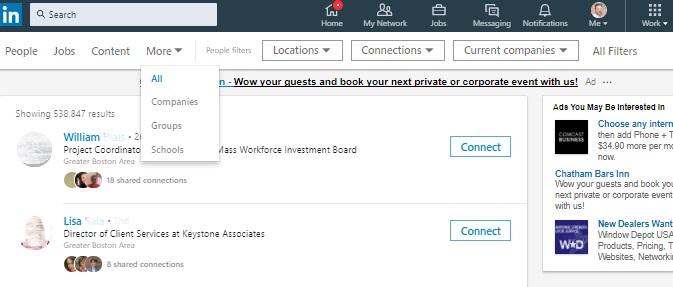
Old Search

People Search2

Above we see a the old Search people toolbar, and to the right a partial view of Filter people by. To me this was a straight forward way to narrow a people search.

In the former toolbar we had All, People, Jobs, Content, Companies, Groups, and Schools. (You’re probably wondering, “Why is Bob typing everything I can see?” For prosperity, kind reader.)

You see in the Filter people by box to the right that I’ve chosen my 2nd degree connections who reside in the Greater Boston area and are in the Information Technology and Services area.

I could expand Keywords to type a first name, last name, title, and school.

I could also expand Connections of to view mutual connections of the person I choose. If I chose my close connection, Kevin Willett, I saw all 932 mutual connections. Holly crap.

As well, I could expand Current companies, Past companies, and Industries, which I mentioned above. Pretty self explanatory. Not shown in this screen capture are Profile language, Nonprofit interests, and Schools.

This was the old setup. It was simple and effective. What you’ll see below is what my  friend saw as I was explaining the old view. (I have to admit I was loosing my patience with him.) Essentially the functionality of the new way to search for people is no different.


The New…

New Search

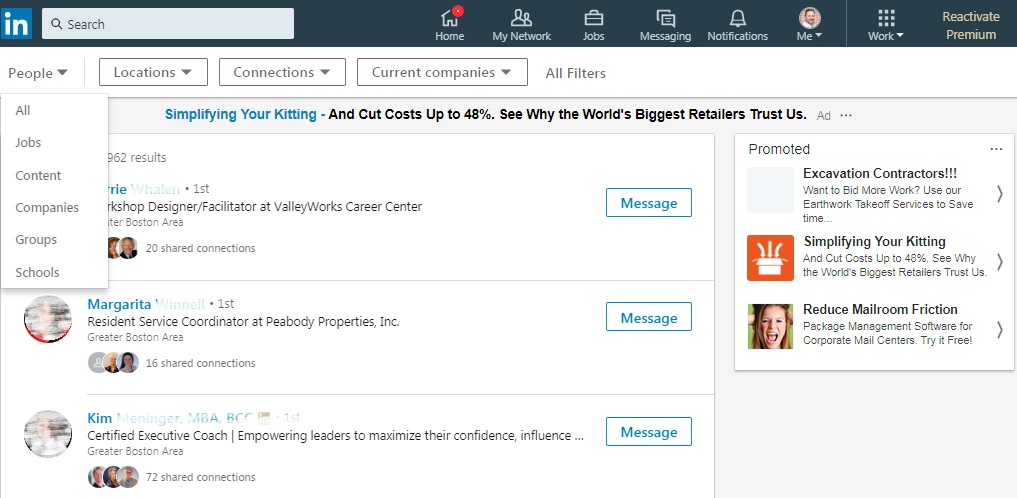
I’m not going to spend an hour going through the changes to the new toolbar, other than to say 1) the font seems to be lighter and 2) everything that was under More above, save for Jobs and Content, can also be found under People (below) when you hit the down button.

New People Search2

Filter people by has become All Filters

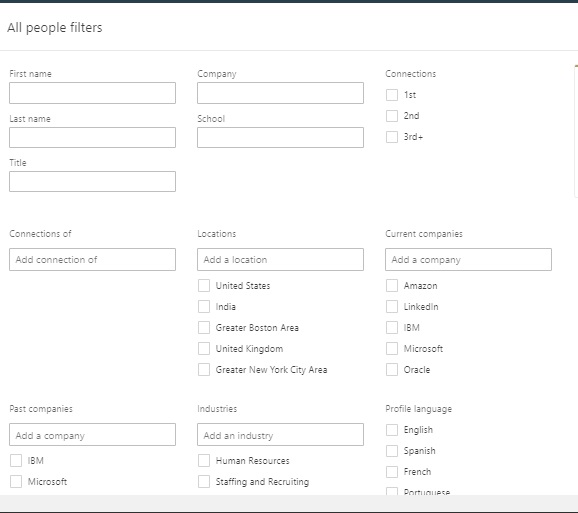
This appears to be the revelation; instead of the nice, neat box shown above, we now have a drop-down from All Filters which is now called All people filters that contains the same filtering components as the older version. Why did LinkedIn make this change? This message, which appears below All Filters, tells us why:

All your filters

Granted all the filters are expanded, which must be the reason LinkedIn made the changes. I never had a problem with Filter people by. Perhaps others did. I’m curious to know from LinkedIn why they made these changes to the toolbar and Filter people by.

New All Feature filters

What’s nice about these changes: the new toolbar allows quick access to Locations, Connections, Current Companies.

If my tone sounds frustrated it’s because I am. The major reasons for my frustration is because I don’t see a major improvement to what I considered to be a strong feature. Is this new look more aesthetically appealing? No.

If you like the changes LinkedIn made to People Search, let me know why.

If you want to learn more about LinkedIn, visit this compilation of LinkedIn posts.


6 interesting ways you can find your alumni using LinkedIn’s “See Alumni”

I’ve been working with a gentleman who is interested in enhancing his LinkedIn strategy. One questions he had for me was with whom should he connect.  I suggested that he connect with those in his occupation and industry, as well as people in companies for which he’d like to work, and then I pointed him to See Alumni.

Home_UMassAlumniInAction_1400_636505033912274809


Alumni? you may wonder. Yes, alumni. It makes perfect sense. Think about the bond you have with the people you went to school with, even if you never met them. There are things you probably experienced during the four years of your education, such as frequenting the same sports bar, getting chased by the white swans from the campus pond, cheering for your school’s basketball team, surviving the blizzard of ’87.

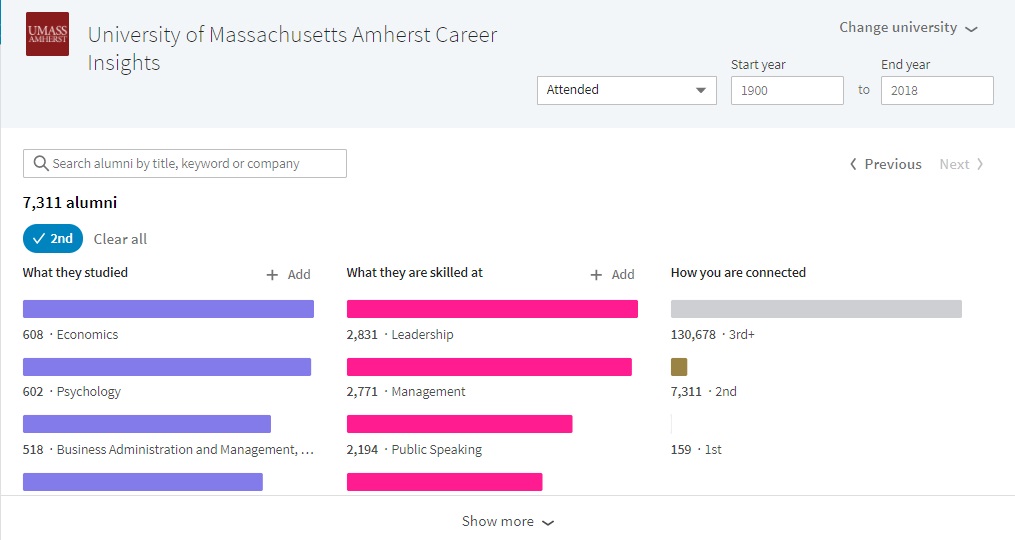
If you haven’t taken a look at See Alumni, which you accesse by typing your school’s name in the Search field, you should see what kind of information you can gather and the potential of connecting with your alumni. I’ve gathered some telling information about my alumni. I’m focusing on my 2nd degree connections.

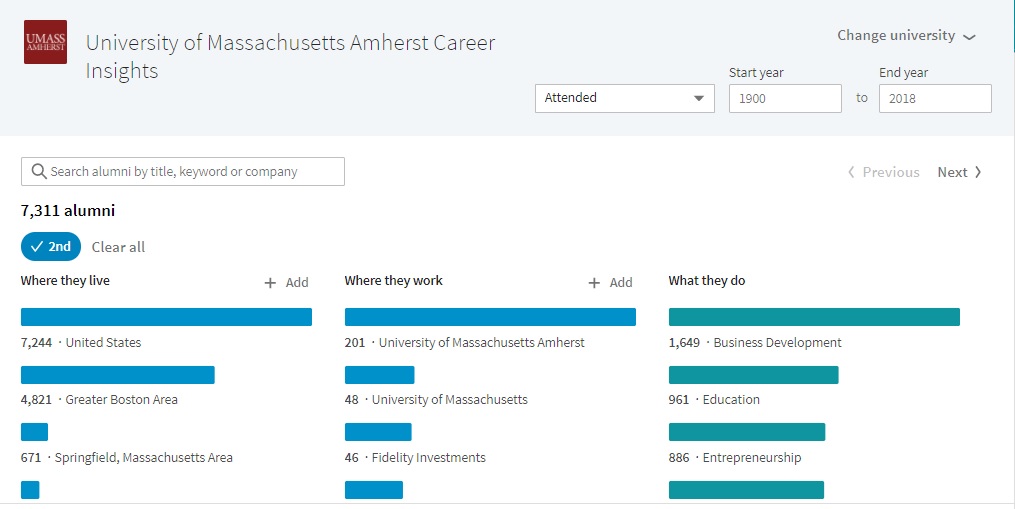
LinkedIn allows me to filter my alumni by six categories. Below is the first of two pages of See Alumni:

See Alumni 1

1. Where they live

In the United States the majority of my alumni live in the Greater Boston area (4,821), which makes sense. I also live in the Greater Boston area and choose to connect with people who are local. Only 671 of my alumni live in the Springfield, Massachusetts area. This also tells me there’s more industry in eastern Massachusetts.

2. Where they work

If I’m wondering where my alumni work, I see that 201 of them haven’t strayed far from home. Most of them work at my alma mater, while the 46 work at Fidelity. I pointed out to my client that if he clicks “See More,” he’ll see many more companies, along with other filters.

I also tell him that this filter is a great source of information, especially if he has some companies in mind. His alumni can be allies in his job search.   

3. What they do

Of my alumni connections 1,649 are in business development. And at the bottom of the truncated view are 886 people in Entrepreneurship. I recall looking through my See Alumni feature and noticing that I’m connected to many engineers, even if they’re 2nd degrees. This filter can be a good indication of the relevance of your network.

The second page of See Alumni provides the following information.

See Alumni 2

4. What they studied

Economics, Psychology, and Business Administration seem to be the choices of majors of my 2nd degree connections at my alma mater. My discipline, English Languages, is seventh on the list. Mechanical Engineering is seventh. Dad always told me not to be an engineer. Not because it’s a lousy occupation; but because I’d make a lousy engineer.

5. What they’re skilled at

My alumni are more skilled at leadership (2,831) than business development, which is hidden, (1,342). If I fashion myself skilled at public speaking, I’m in the company of 2,194 others who share this skill.  Social Media stands at 1,902. Four years ago it was at the bottom at the list at 556. This is an indicator that social media is exploding.

6. How you’re connected

Four years ago my 1st degree connections stood at a mere 32. Now I have 159. My second degrees have grown from 4,521 to 7,311 in that time frame.

What does this all mean?

This has been a fun exercise for me in terms of discovering where my alma mater live and work, what they do, etc; but the power of this feature lies in identifying specific people with whom you’d like to connect. No matter what your age is, this is a feature you should be using.

If you enjoyed this post, please share it.

Photo: UMass.edu Almuni

5 steps to connect with LinkedIn members

But first the proper ways to connect.

LinkedIn Flag

Let’s start with a quiz:

How do you connect with people on LinkedIn? Do you:

  1. indiscriminately click the button that says “Send now”;
  2. take the time to add a note;
  3. ask for an introduction to your desired contact, or;
  4. first send an email to your desired contact before sending an invite?

For many years I’ve been advising people to always add a note when connecting because…it’s the right thing to do. However, after talking with a valued connection, Bobbie Foedisch, I learned a great deal about connecting etiquette. More on that later.

Currently employed, or not, you should build up your network with connections who are like-minded and can be of mutual assistance. Let’s look at three ways to connect with others on LinkedIn.

Connecting directly

For example, if you’re going for the direct connection, your invite message might read like this:

Hello Susan.

When I saw your profile on LinkedIn, I thought it would be great to connect. You and I have a great deal in common, namely that we are in the business of helping people find employment. It would be great to connect.

Bob

Note: you only have 300 characters to work with.

Using a reference to connect

If you’re going to connect directly, you’re more likely to gain success by using a reference. This would be a shared connection—someone who is connected with you and the LinkedIn member with whom you’d like to connect.

Doing a search for a 2nd degree who resides in the Greater Boston Area and works for Philips produces the result below. Below the four people in this image you notice the faces of the shared connections. Click on (number) of shared connections to see who is connected directly with your desired LinkedIn member.

Philips shared connections for Recruiterdotcom

Once you have chosen a person who could be a reference for you, email the person asking if you could use her name in an invite. Your message might be:

Hi Dave.

You and I are both connected with Sharon Beane. She and I work for the Career Center of Lowell as workshop facilitators. We have the utmost respect for each other. When asked if I could mention her in an invite to you, she enthusiastically agreed. I see we do similar work, that of helping others. I would like to join your network in hopes of being of mutual assistance.

Sincerely, Bob.

Asking for an introduction

Bobbie suggests that one should use an introduction when they want someone to join their network. This requires asking a trusted connection to send a message to the person with whom you’d like to connect.

Note: email is Bobbie’s preferred means of asking for an introduction because it is more commonly used than LinkedIn Messaging. Great point.

Here is a sample introduction sent via email.

Hi Karen.

I see that you’re connected with the director of HR, Mark L Brown at (town).

I’m trying to fill a director of DPW position and would like to get some advice from Mark. I read on LinkedIn that they’re trying to fill an accountant position. I like the way he wrote the job description, pointing out their diverse environment.

Thank you in advance for introducing me to Mark. If there’s anything I can do for you, don’t hesitate to ask.

Andy Smith, Human Resources Generalist, 978.935.5555

PS. It was great seeing our girls duke it out in last weekend’s soccer match. I hope the two teams meet in the playoffs.

Now let’s look at the five steps to finding people with whom to connect.

1. Search by people. Just click the magnifying glass in the Search field and then click People. In my case, I came up with a little less than 7,500,000 first, second, and third degree connections.

2. In “All people filters,” select 2nd in Connections for an obvious reason; you cannot connect with your first degrees, as you are already connected. This brings me to more than 124,000

3. Now select the type of person you’re seeking in Keywords. I typed “Career” in the Keywords area in the Title field because I wanted LinkedIn to do a pretty general search for people in the career development/advisor/counselor/coach occupations. This brings my number of connections to slightly more than 7,000.

4. You probably don’t want to look for career related people worldwide. Perhaps you’re focusing on people closer to home. I am, so I got to Locations and select Greater Boston Area. I’m at 825 second degree connections now. Note: sometimes you have to type in the location.

5. Here’s where you want to narrow your search to people who are mutually connected as first degrees with one of your valued connections. In the image above, you see the first person, Anthony, at the top of my list shares 36 degree connections with me.

Next, I will click on one of the circular photos below Anthony who I know well and can  mention as a reference in a cold invite.

2nd degree connection

5. The person I’ve chosen is one who can help facilitate an introduction to the person above. The reason I know this is because she and I have had numerous conversations, and we respect each other’s expertise. In other words, I trust her.


You might think how my friend, Bobbie Foedisch, goes about connecting with people on LinkedIn as time consuming, but she has been successful using LinkedIn for social selling, and she teaches job seekers how to use LinkedIn. She has the right idea about making long-term connections on LinkedIn.

I, on the other hand, am less exact; I connect with like-minded people without reaching out to them beforehand. Whether you connect directly with a LinkedIn user or ask for an introduction, using “Connections of” can effectively facilitate the connection.

If you want to learn more about LinkedIn, visit this compilation of LinkedIn posts.

.